Msys2 : Installation et Configuration
Tool Versions
| Os / Tool | Version |
|---|---|
| Windows 10 Professionnel | 20H2 |
| Msys2 | 20210419 |
Installation procedure
Start by getting and installing the Msys2 binary
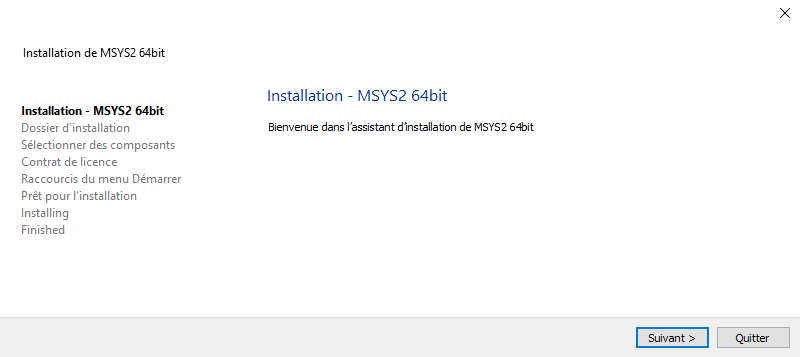
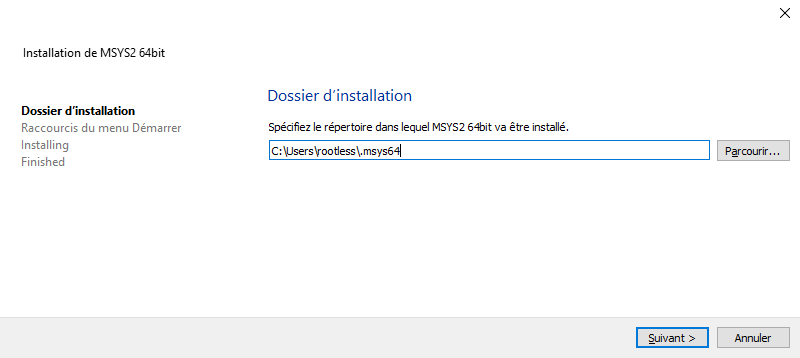
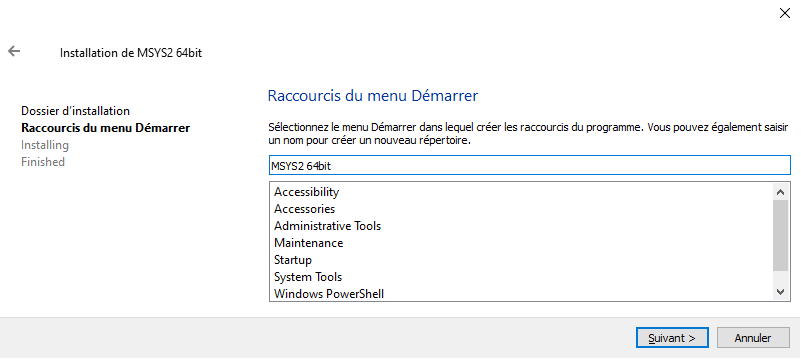
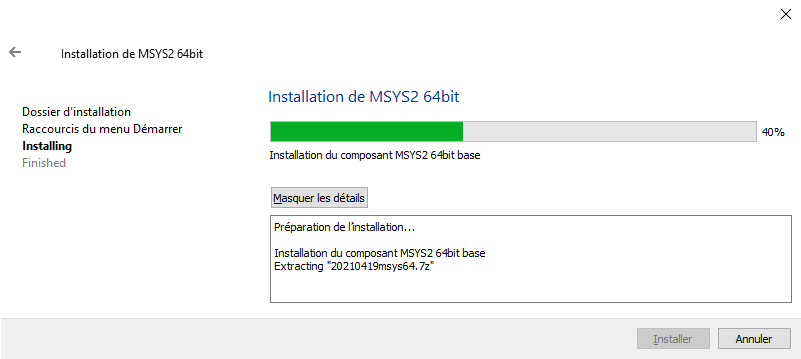
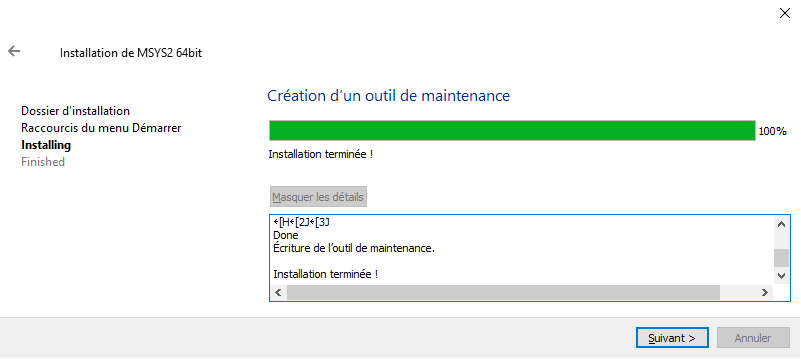
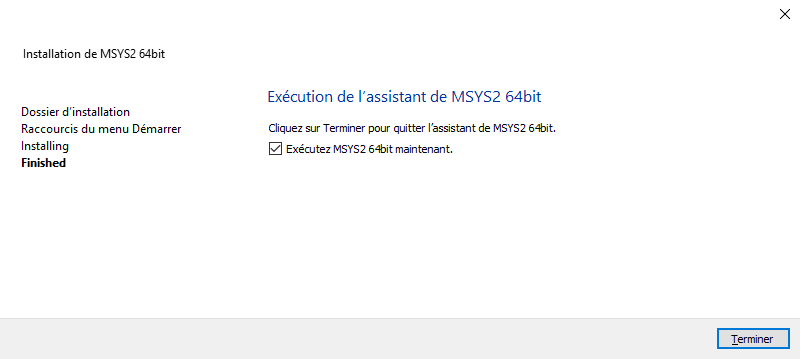
Run the installer and follow the steps. Make sure to install MSYS2 in your user directory. C:\Users\USER_NAME\.msys64
Post installation procedure
Run MSYS2 MinGW 64-bit
If you are behind a proxy configure it from the command-line to start:
export http_proxy="http://LOGIN:PASSWORD@PROXY:PORT" && export https_proxy=$http_proxy && curl -ivks https://github.com
In case of TLS proxy get the root and intermediate authorities and add them.
mkdir ~/certs
# Retrieving certificates
trust anchor --store ~/certs/cert001.crt
# [...]
trust anchor --store ~/certs/certXXX.crt
update-ca-trust
Update the system
Install the base-devel and mingw-w64-x86_64-toolchain packages
Customisation
Basic tools
Programming language and Co
pacman -S --needed --noconfirm libcrypt-devel libffi-devel libyaml-devel mingw-w64-x86_64-libffi mingw-w64-x86_64-libsodium mingw-w64-x86_64-openssl mingw-w64-x86_64-pkg-config mingw-w64-x86_64-python mingw-w64-x86_64-python-pip mingw-w64-x86_64-ruby openssh openssl-devel
Python tools
export CRYPTOGRAPHY_DONT_BUILD_RUST=1
export SODIUM_INSTALL=system CFLAGS=`pkg-config --cflags libffi`
export LDFLAGS=`pkg-config --libs libffi`
pip install cffi --no-binary :all:
export C_INCLUDE_PATH=/mingw64/include
export LIBRARY_PATH=/mingw64/lib
pip install pynacl
pip install beautysh gita gitlint httpie pre-commit yamllint
Smoke Tests
Check that everything is correctly installed
tools=( ansible beautysh curl gcc git gita gitlint http locate make pip  pre-commit tmux tree unzip vim yamllint zsh )
for i in "${tools[@]}"
do
  which $i >/dev/null 2>&1 && echo "$i ok" || echo "$i ko"
done
Advanced customisation
Generate your SSH key
Install ohmyzsh
Install additional ohmyzsh plugins
git clone https://github.com/zsh-users/zsh-autosuggestions.git ~/.oh-my-zsh/custom/plugins/zsh-autosuggestions
git clone https://github.com/zsh-users/zsh-syntax-highlighting.git ~/.oh-my-zsh/custom/plugins/zsh-syntax-highlighting
Change msys2 launch to switch from bash to Zsh edit the C:\Users\USER_NAME\.msys64\msys2_shell.cmd
@echo off
setlocal EnableDelayedExpansion

set "WD=%__CD__%"
if NOT EXIST "%WD%msys-2.0.dll" set "WD=%~dp0usr\bin\"
set "LOGINSHELL=zsh"
[...] truncate output
Clone and install the powerline font and tmuxifier
mkdir -p /opt/github && cd /opt/github
git clone https://github.com/powerline/fonts.git
git clone https://github.com/jimeh/tmuxifier.git
Install powerline font by running the script C:\Users\USER_NAME\.msys64\opt\github\fonts\install.ps1
Set-ExecutionPolicy -ExecutionPolicy RemoteSigned -Scope CurrentUser
C:\Users\USER_NAME\.msys64\opt\github\fonts\install.ps1
Finally
- Install dotfiles
- Configure mingw color
Source
GitHub - Msys2 installer
Microsoft - Maximum Path Length Limitation
Msys2 - site
GitHub - Install Ansible on msys2